
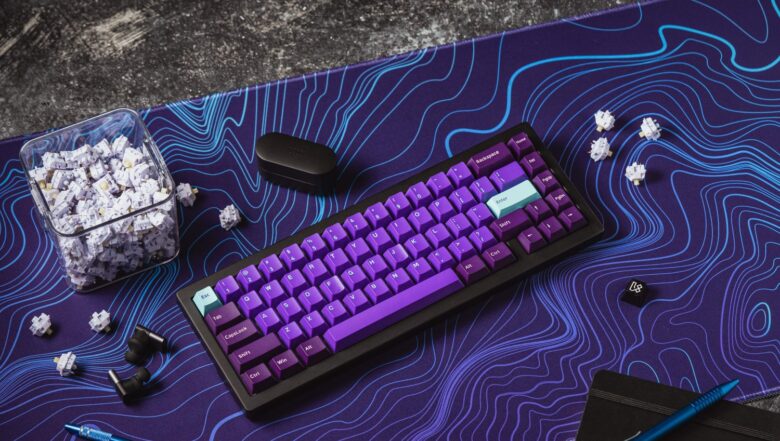
Personalizing your keyboard can make everyday typing more enjoyable. After all, it is one of the most used interfaces on any phone or tablet. Many people hesitate to customize it because they assume themes or visual tweaks might slow their device down. In reality, most modern keyboards are optimized so appearance changes barely affect performance when done properly.
The key is understanding which customizations remain lightweight and which ones can introduce unnecessary resource usage. Once you know the difference, you can create a keyboard that looks unique while still typing smoothly and quickly. The sections below walk through practical ways to customize keyboard appearance without sacrificing performance.
Understanding How Keyboard Themes Affect Performance
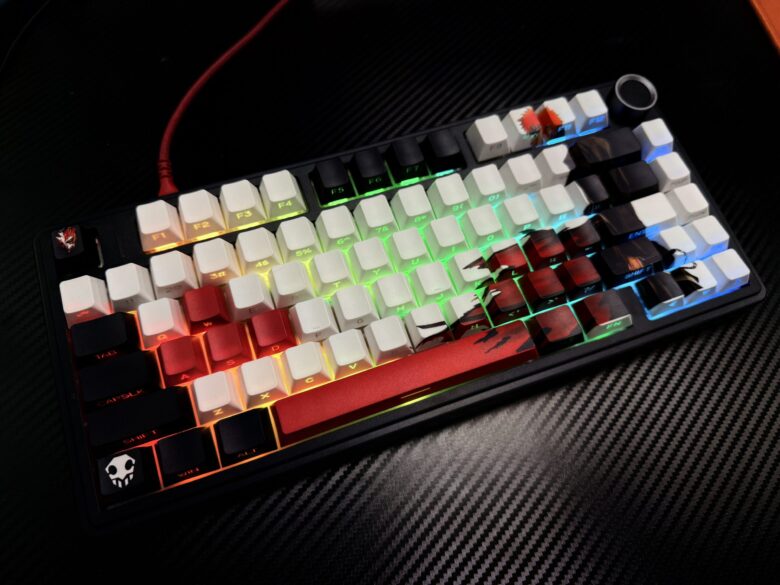
Before diving into customization tools, it helps to understand what actually affects performance. Most keyboard themes are simply visual overlays such as colors, fonts, or backgrounds applied to existing layouts. Because they rely on lightweight graphics and built in rendering systems, the impact is usually minimal.
Small visual tweaks such as changing color schemes or fonts barely touch your device’s processing power. Performance issues usually appear when themes add heavy animations or large image files that require extra memory to load.
Important note: Static keyboard themes rarely affect performance, but dynamic or externally loaded themes may increase memory usage and slow initial loading slightly.
Keeping customization simple ensures your keyboard remains fast. In other words, appearance should enhance the experience rather than overload the interface.
Start With Built In Customization Options
Most modern keyboards already include customization settings that are optimized by the developers. Using these built in tools is usually the safest way to personalize appearance without performance issues.
One example involves keyboards that support theme changes directly through system settings. Users can adjust colors, backgrounds, or visual styles from the keyboard’s theme menu without installing anything extra.
Another approach involves downloading trusted keyboard tools. For instance, users looking for Chinese input customization sometimes install options available through 搜狗下载, which offers keyboard tools and themes designed to integrate smoothly with compatible systems. Because these tools are built for specific keyboards, they tend to maintain good performance while allowing visual customization.
A few common built in customization options include:
- Changing keyboard background color or theme style
- Adjusting key borders and transparency
- Selecting different fonts or key shapes
- Switching between light mode and dark mode
These adjustments usually rely on simple graphical changes, so they keep the keyboard responsive.
Choose Lightweight Themes Instead of Animated Ones
Not all keyboard themes are created equally. Some look impressive in screenshots but rely on animations or dynamic graphics that require more processing power.
Lightweight themes tend to focus on simplicity and readability. They use static backgrounds, simple gradients, or solid colors. This type of design keeps rendering quick and efficient.
Recommended Theme Characteristics
- Solid or gradient backgrounds instead of animated images
- Simple key borders and minimal shadow effects
- Limited use of transparency layers
- Standard fonts rather than decorative typography
Below is a quick comparison showing how theme types typically affect performance.
| Theme Type | Visual Style | Performance Impact |
|---|---|---|
| Static color theme | Solid colors and minimal graphics | Very low |
| Gradient theme | Subtle color blending | Low |
| Image background theme | Custom photo or wallpaper | Moderate |
| Animated theme | Moving visuals and effects | Higher |
Choosing simpler designs often makes the keyboard easier to read as well. Clean themes also reduce eye strain during long typing sessions.
Customize Layout and Key Design Carefully
Appearance customization is not limited to colors. Many keyboards allow adjustments to layout and key design, which can make typing both faster and more comfortable.
For example, some customization tools allow users to change key size, spacing, and shapes. On certain devices you can even rearrange symbols or add a permanent number row for easier access.
However, layout changes should be practical rather than purely aesthetic. Overly stylized keys may look attractive but can slow down typing accuracy.
A balanced approach works best:
- Use slightly larger keys if you frequently mistype
• Increase spacing if keys feel cramped
• Keep letters high contrast against the background
• Avoid decorative fonts that reduce readability
Small adjustments like these improve both usability and appearance without adding processing overhead.
Reduce Visual Clutter for Faster Typing
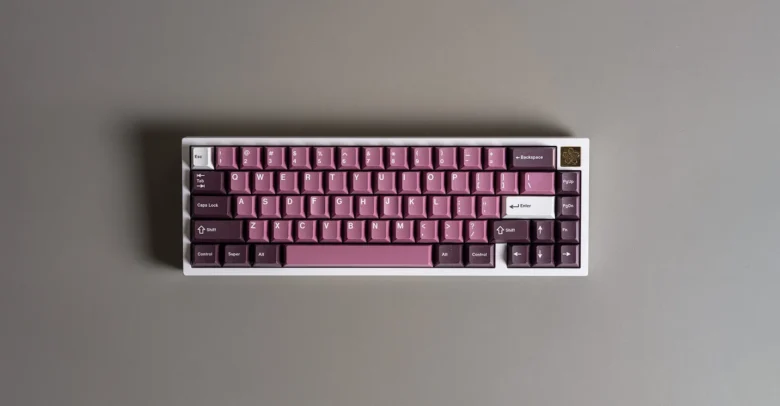
A cluttered keyboard interface can feel slower even when it technically is not. Too many colors, icons, or animations make it harder for your brain to locate keys quickly.
Minimalist keyboard themes often provide the best balance between customization and performance. Clean layouts help your eyes scan the keyboard faster, which naturally improves typing speed.
Did you know?
Studies of interface design show that high contrast layouts improve readability and reduce visual processing time, which helps users interact with digital interfaces more efficiently.
For keyboard customization, that usually means:
- Dark text on light keys or light text on dark keys
• Clear outlines around frequently used keys
• Limited decorative elements
By simplifying the interface visually, you gain both speed and comfort.
Manage Extra Features That Affect Performance
Keyboard customization sometimes goes beyond visuals. Many keyboards include additional features such as sounds, vibrations, or predictive tools that can slightly affect performance.
While these features are usually optimized, reducing unnecessary ones can keep your keyboard extremely responsive.
Examples of optional features include:
- Keypress sound effects
• Haptic vibration feedback
• Animated typing indicators
• Background AI suggestions
If you want the fastest possible typing experience, consider disabling features you rarely use. This frees up small amounts of memory and keeps the keyboard running smoothly.
Keep Your Keyboard Apps Clean and Updated
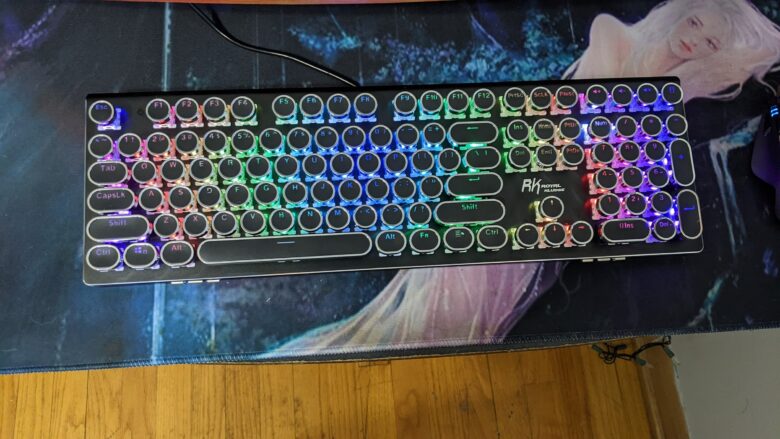
One overlooked factor in keyboard performance is the number of installed keyboard apps. Many users experiment with multiple keyboards but forget to remove the ones they no longer use.
Third party keyboards can add customization features such as custom backgrounds, fonts, or gesture typing. However, installing too many can lead to background processes that affect system resources.
To keep your keyboard efficient:
- Uninstall keyboards you no longer use
• Update your primary keyboard regularly
• Avoid themes from unknown developers
• Limit background plugins or extensions
A well maintained keyboard app stays fast while still offering personalization options.
Test Changes Gradually
Customizing your keyboard should feel like an experiment rather than a one time overhaul. Making several changes at once can make it harder to identify which tweak affects performance or usability.
A gradual approach works better. Start with one adjustment such as color or layout. Use it for a few days before introducing another change.
This process allows you to notice subtle improvements or issues.
For example, you might test:
- A darker theme for evening typing
- Larger key spacing for better accuracy
- Reduced vibration strength for quieter typing
Small iterations lead to a keyboard setup that looks good and performs smoothly.
Final thoughts
Keyboard customization is one of the simplest ways to personalize your device. With the right approach, you can adjust colors, layouts, and visual elements without sacrificing speed or responsiveness.
The most reliable strategy is sticking with lightweight themes, built in customization tools, and practical design choices. Avoid overly animated themes or unnecessary features that add visual clutter or extra processing load.
A good keyboard should feel effortless to use. When appearance and functionality are balanced correctly, your customized keyboard becomes more than a design choice. It turns into a comfortable workspace that makes everyday typing faster, clearer, and far more enjoyable.